Table of Contents
ToggleVirtual reality tips can transform an average VR session into something genuinely immersive. Whether someone just unboxed their first headset or they’ve been exploring digital worlds for years, small adjustments make a big difference. The right setup, proper calibration, and smart habits separate frustrating experiences from ones that feel almost real. This guide covers the practical steps users need to maximize comfort, performance, and enjoyment every time they strap on a headset.
Key Takeaways
- Clear at least 6.5 x 6.5 feet of floor space and use dim, consistent lighting to optimize tracking and safety in your VR play area.
- Adjust your headset’s interpupillary distance (IPD) and strap tension properly to prevent eye strain, headaches, and facial discomfort during longer sessions.
- Combat motion sickness by starting with stationary experiences, enabling comfort settings like teleportation, and keeping initial sessions under 20 minutes.
- Protect your VR lenses by using only microfiber cloths, avoiding direct sunlight exposure, and never spraying cleaning solutions directly onto the glass.
- Boost performance by closing background applications, maintaining consistent 90 FPS over maximum graphics settings, and using a dedicated 5GHz Wi-Fi network for wireless streaming.
- These virtual reality tips for setup, comfort, and maintenance help extend your equipment’s lifespan while maximizing immersion in every session.
Setting Up Your VR Space Properly
A good VR experience starts before anyone puts on the headset. The physical play area matters more than most people realize.
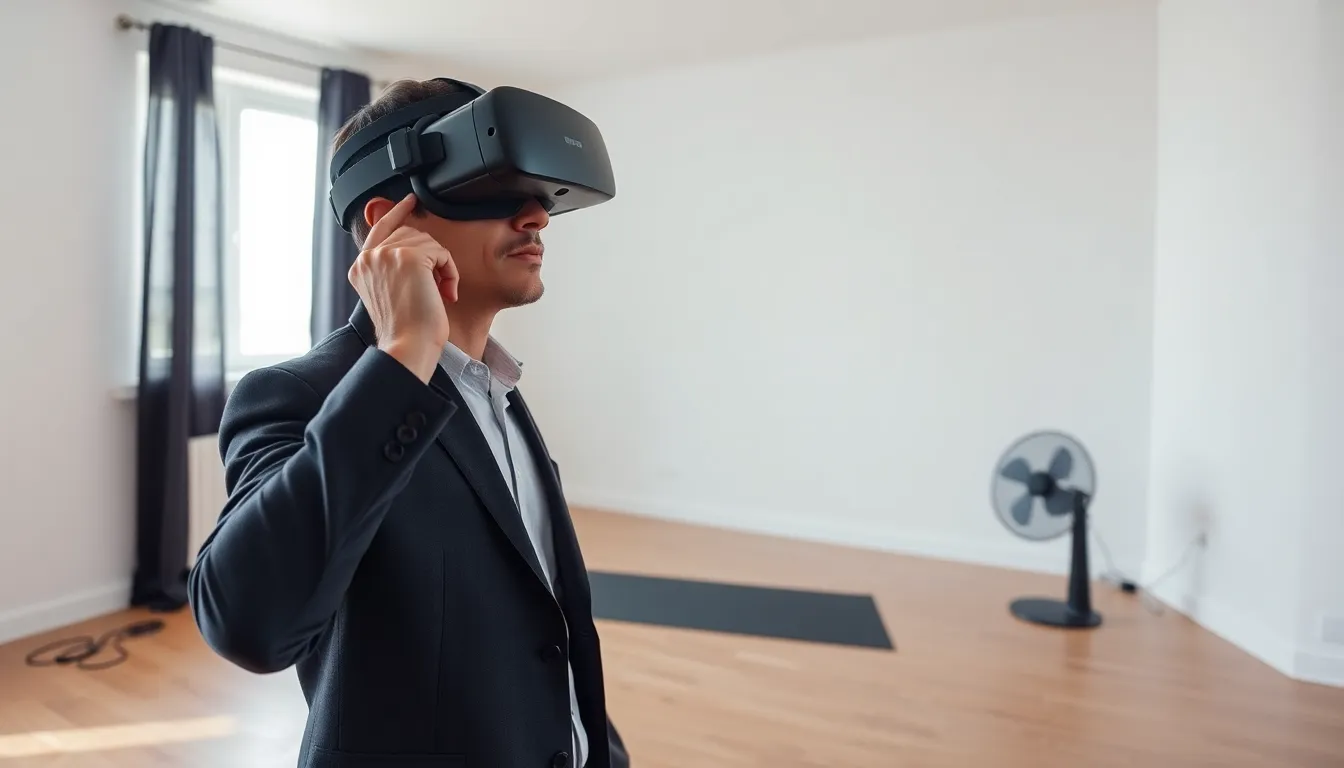
First, users should clear a minimum of 6.5 feet by 6.5 feet of floor space. This gives enough room for arm movements and small steps without hitting furniture. Walls, pets, and ceiling fans are common hazards, all of them hurt when struck mid-game.
Lighting also affects tracking quality. Most headsets use cameras to monitor controller positions and room boundaries. Bright sunlight streaming through windows can confuse these sensors. Dim but consistent lighting works best. Blackout curtains help, especially during daytime sessions.
Users should mark their play area boundaries clearly within the headset’s software. These guardian systems exist for good reason. Ignoring them leads to punched TVs and stubbed toes. Setting boundaries slightly inside actual walls provides an extra safety buffer.
Hard floors beat carpet for standing experiences. They provide stable footing during fast movements. A thin yoga mat can cushion feet during longer sessions without affecting balance.
Finally, keep the charging cables organized but accessible. Nothing kills immersion faster than a dead controller mid-session.
Adjusting Your Headset for Comfort and Clarity
An improperly fitted headset causes headaches, blurry visuals, and red marks on the face. Taking five minutes to adjust everything properly pays off during hour-long sessions.
The interpupillary distance (IPD) setting is crucial. This measures the gap between someone’s pupils. Most headsets offer physical sliders or software adjustments for IPD. Users should experiment until text appears sharp and images don’t seem doubled at the edges. Getting this wrong causes eye strain within minutes.
Strap tension requires balance. Too loose, and the headset shifts during movement. Too tight, and pressure builds on the forehead and cheeks. The sweet spot keeps the display stable without leaving marks. Many users find that loosening the top strap slightly while tightening the sides improves weight distribution.
Glasses wearers have options. Some headsets include spacers that create room for frames. Prescription lens inserts offer a better solution for frequent users, they attach directly to the headset and eliminate the awkward glasses-under-headset setup entirely.
The facial interface (the foam or silicone piece touching the face) deserves attention too. Third-party replacements often provide better comfort than stock options. Silicone covers also make cleaning easier after sweaty sessions.
These virtual reality tips for headset adjustment might seem minor, but comfort directly affects how long someone can enjoy VR before fatigue sets in.
Preventing Motion Sickness
Motion sickness remains the biggest barrier to VR enjoyment for many people. The brain gets confused when eyes see movement that the inner ear doesn’t detect. Fortunately, several strategies reduce or eliminate this problem.
New users should start with stationary experiences. Games where the player stands in one spot while interacting with their environment cause less discomfort than those involving artificial locomotion. Beat Saber, for example, rarely triggers nausea because physical movement matches visual feedback.
When ready to try movement-based games, users should enable comfort settings. Options like teleportation instead of smooth movement, vignettes that narrow peripheral vision during motion, and snap turning all reduce sickness triggers. These features exist specifically to help sensitive players.
Session length matters. Starting with 15-20 minute sessions allows the brain to adapt gradually. Pushing through nausea makes it worse and creates negative associations with VR. Taking breaks at the first sign of discomfort prevents hours of lingering queasiness.
Ginger helps some people. Ginger candies, tea, or supplements taken 30 minutes before VR sessions have shown effectiveness in reducing motion sickness symptoms.
A fan pointed at the play area provides another useful trick. The airflow gives the brain physical reference points that help it process the visual information more accurately. Many experienced VR users swear by this simple addition.
Maintaining Your VR Equipment
VR headsets represent significant investments. Proper maintenance extends their lifespan and keeps the experience crisp.
Lens care requires special attention. The lenses sit millimeters from users’ eyes, so every smudge and scratch becomes visible during use. Only microfiber cloths should touch the lenses, paper towels and shirt fabric can cause scratches. Lens cleaning solutions designed for coated optics work best. Never spray liquid directly onto lenses: apply it to the cloth first.
Direct sunlight destroys VR lenses quickly. The curved glass focuses light like a magnifying glass, burning the display underneath. Users should store headsets in cases or drawers, never near windows.
Controllers take abuse during intense gaming sessions. Wrist straps prevent them from flying across the room. Silicone covers protect against impacts and improve grip during sweaty moments. Battery contacts should be cleaned occasionally with a dry cloth if controllers become unresponsive.
The facial interface absorbs sweat and skin oils. Removable covers should be washed regularly. For non-removable foam, antibacterial wipes designed for electronics keep things fresh.
Firmware and software updates often include performance improvements and bug fixes. Keeping the headset and controllers updated ensures the best possible experience.
These virtual reality tips for maintenance might seem tedious, but they prevent costly repairs and replacements down the line.
Getting the Best Performance From Your System
Performance issues break immersion faster than almost anything else. Stuttering visuals and laggy tracking make VR uncomfortable and sometimes sickening.
For PC-based VR, graphics settings need careful adjustment. Running games at the headset’s native resolution with high settings demands serious hardware. Users should start with medium settings and increase gradually while monitoring frame rates. Consistent 90 FPS matters more than maximum visual quality.
Background applications consume resources that VR needs. Closing web browsers, chat programs, and anything unnecessary before starting VR frees up processing power. Some users create dedicated VR profiles that automatically disable startup programs.
Standalone headsets like the Meta Quest series have limited processing power. Users can improve performance by clearing unused apps, restarting the device regularly, and keeping storage space available. Full storage causes slowdowns across the system.
Wi-Fi quality affects wireless PC VR streaming and multiplayer experiences. A dedicated 5GHz network with the router in the same room as the play area provides the best results. Interference from walls, microwaves, and other devices causes stuttering and latency.
USB connections matter for tethered headsets. Using the ports directly connected to the motherboard rather than front panel or hub connections often improves tracking stability and video quality.
Applying these virtual reality tips for performance optimization ensures smooth, responsive experiences regardless of the hardware being used.